
Your studio in 10 minutes#
| Need | Tip |
|---|---|
| A webcam | any USB webcam; test it first in VLC (Media → Open Capture Device) |
| Something to hold it still | a tripod, a clamp, or tape it to a pile of books. It must not move at all. |
| Light | close the curtains, use two desk lamps. Daylight changes and makes the film flicker. |
| A stage | a table against a wall; a sheet of paper as background |
| Characters | plasticine, LEGO, paper cut-outs, toys |
Capture#
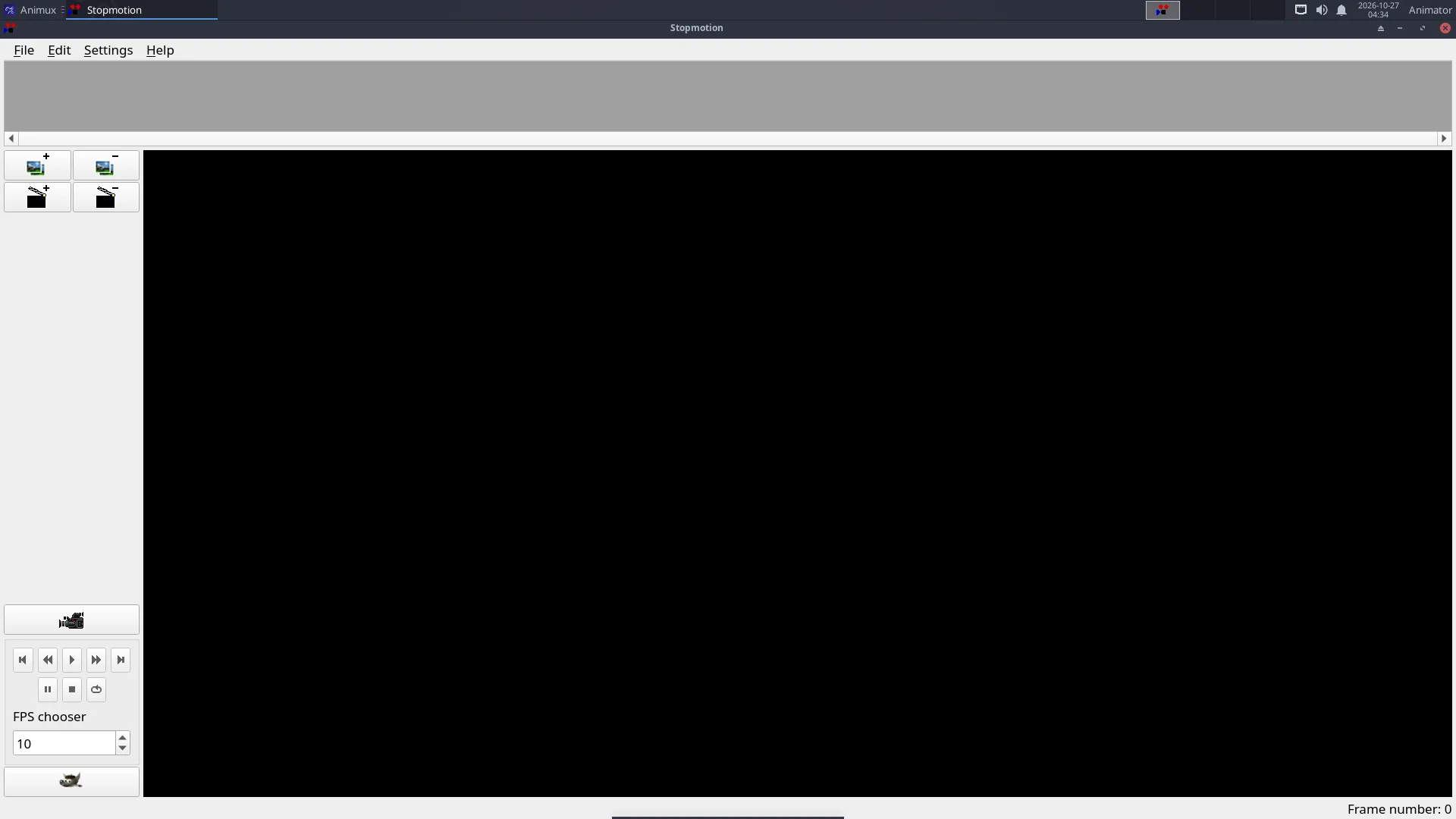
- Start StopMotion Animation → Stopmotion.
- Settings → Preferences → Video Import: select your camera (
/dev/video0for the first webcam). - Click the camera button: the live picture appears.
- Set onion skin to show the last 1–2 frames (the slider in the camera bar).
- Place your character. Take the first frame.
- Move the character a very small step (a few millimetres), check against the onion skin, take the next frame.
- Repeat. 12 frames = 1 second of film at 12 fps.
Planning
A 10-second scene at 12 fps needs 120 photos. Plan the movement first; count the steps. Moving characters slowly at the start and end of a motion (small steps) and faster in the middle (bigger steps) makes it look natural.
Check and fix#
Press Play. Delete bad frames (a hand in the picture!) by selecting them and pressing Delete. Use the frame rate setting to change the speed.
Export#
File → Export → Video, or export the frames as images and make a video with FFmpeg:
ffmpeg -framerate 12 -i frame_%04d.jpg -c:v libx264 -pix_fmt yuv420p -crf 18 my-film.mp4
Add music and titles in Kdenlive.
No webcam?#
Use a phone camera on a small stand. Take the photos, copy them to Animux (USB cable or a card reader), and import them in Stopmotion with Edit → Add frames (or drag them in), or put them straight into Kdenlive as an image sequence.