
| Synfig Studio | |
|---|---|
| Menu | 2D Animation → Synfig Studio |
| Version | 1.5.1 |
| Command | synfigstudio |
| Good for | Beginner |
| Files | .sifz, .sif; exports PNG sequences, GIF, video |
| Licence | GPL-3.0 |
| Website | synfig.org |
| Self-test | animux-selftest synfig |
In Synfig you do not draw every frame. You set the important poses (waypoints) and Synfig calculates the frames in between (tweening). Characters are built from shapes and can be moved with bones, like a puppet.
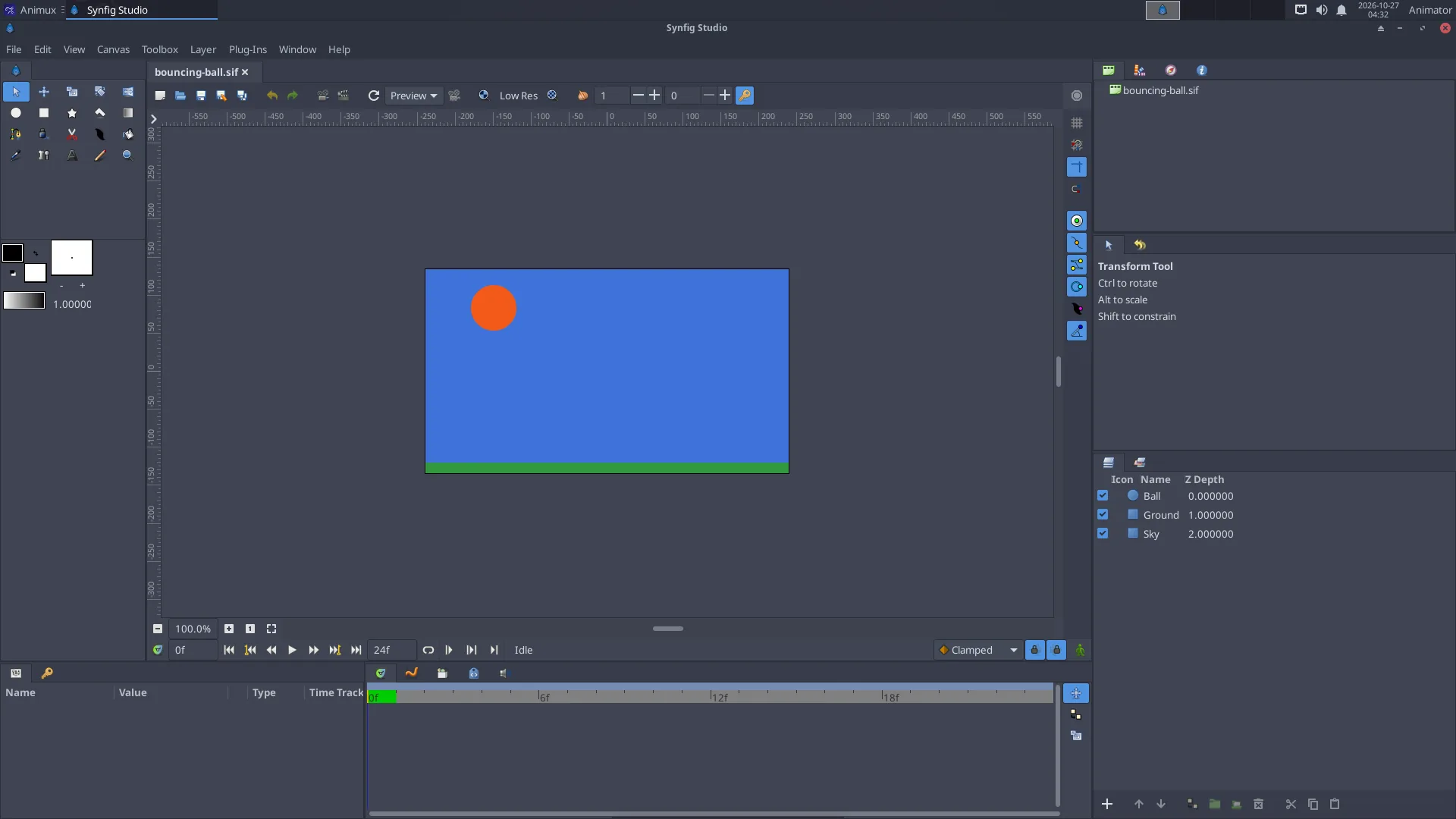
The window#
| Panel | Use |
|---|---|
| Toolbox (left) | transform, circle, rectangle, spline (draw shapes), fill, text, bones… |
| Canvas (middle) | your picture; the Animation mode button at its bottom right (red when on) records changes as waypoints |
| Params | settings of the selected layer (colour, position, radius…) |
| Layers | every shape is a layer; group them to build characters |
| Timetrack | waypoints over time; drag them to change timing |
Animate a ball in five steps#
The sample /usr/share/animux/samples/synfig/bouncing-ball.sif is a finished example; open it with File → Open to look at it. To make your own:
- File → New. Set the length in Canvas → Properties → Time (for example End time 48 at 24 fps = 2 seconds).
- Choose the Circle tool and drag on the canvas to draw a ball.
- Click the Animation mode button (bottom right of the canvas): the canvas gets a red frame.
- At frame 0, place the ball at the top. Move the time slider to frame 12 and drag the ball to the bottom; at frame 24 back to the top. Synfig adds waypoints and fills in the frames.
- Press Play. Turn animation mode off when you are done.
Make it look natural: right-click a waypoint → Both → Ease In/Out for slow-in and slow-out.
Export#
File → Render: choose the file name and Target:
png(image sequence, best quality, for editing in Kdenlive),giffor the web,ffmpegfor a video file.
Or from a terminal:
synfig bouncing-ball.sif -t png -o ~/ball/frame.png        # all frames
synfig bouncing-ball.sif -t gif -o ~/ball.gif
synfig bouncing-ball.sif -t png --time 12 -o ~/frame12.png  # one frame
Learn more#
- Synfig's manual and tutorials: https://synfig.readthedocs.io/
- Tutorial on this guide: A bouncing ball in Synfig