
Krita animates like Pencil2D but with all its painting brushes, so it is good for painterly effects: fire, water, smoke, magic. We paint a candle flame that loops.
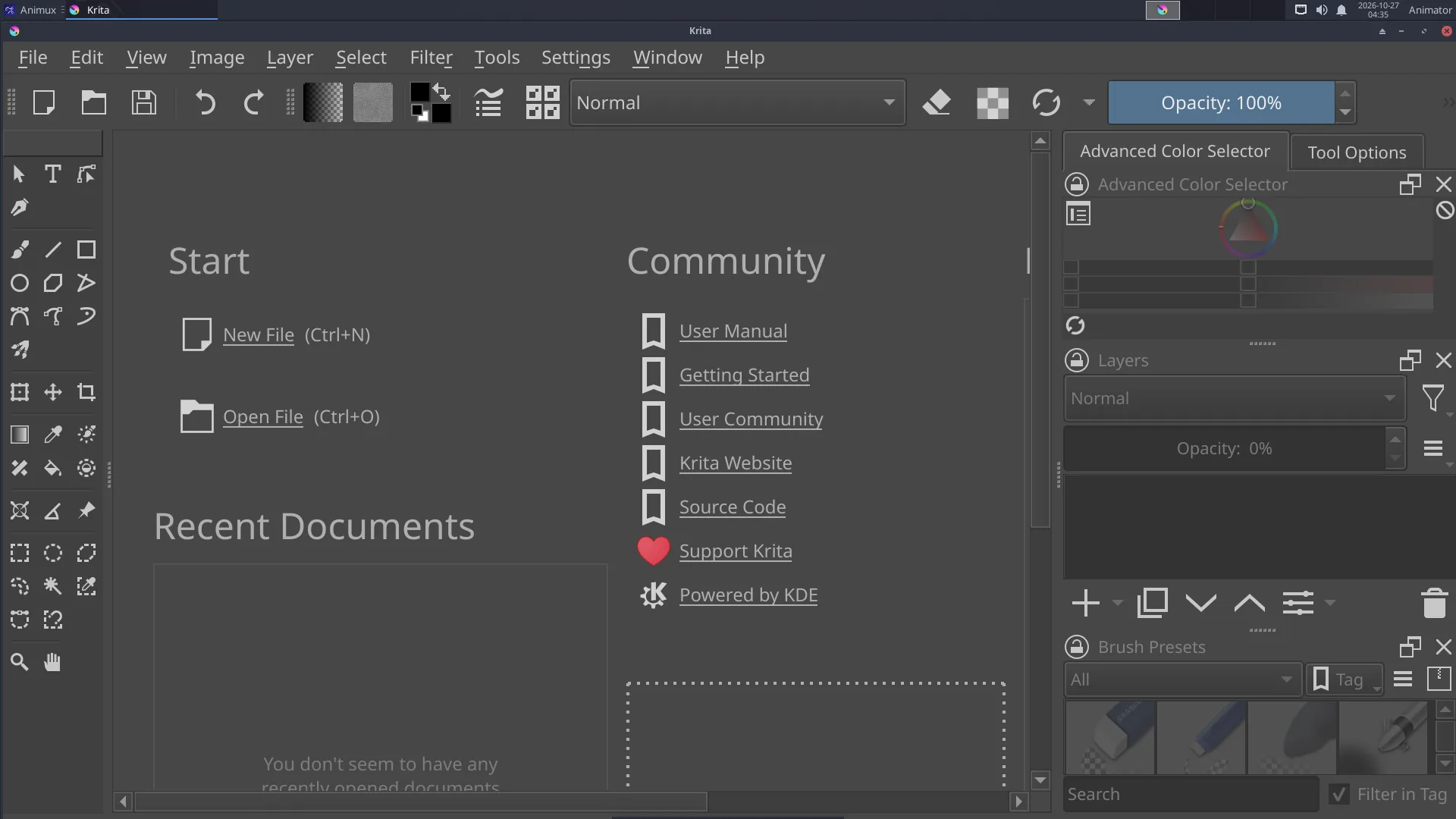
1. A new animation document#
- Start 2D Graphics → Bitmap Editors → Krita.
- File → New: width
1080, height1080, Create. - Window → Workspace → Animation. The Timeline (bottom), Animation and Onion Skins panels appear.
- In the Animation panel set Frame rate
12, Start0, End11(one-second loop).
2. Background and candle#
- Fill the background layer dark (bucket fill, F).
- Add a layer (Insert) named Candle and paint the candle body. It does not move, so it needs no frames.
3. The flame, frame by frame#
- Add a new layer Flame. In the timeline, right-click frame 0 of Flame → Create Blank Frame.
- Paint a flame with a soft brush (orange-yellow, brighter in the middle).
- Turn on the onion skin (the light bulb icon on the Flame layer in the timeline).
- Click frame 2, right-click → Create Blank Frame, and paint the flame a little taller and leaning left. Continue on frames 4, 6, 8 and 10 with small changes. Each drawing holds for two frames (animating on twos).
- Make frame 10 lead back to frame 0, so the loop is smooth.
4. Play and adjust#
Press Play in the Animation panel, and switch on looping. Drag frames in the timeline to change the timing.
5. Glow#
Duplicate the Flame layer, put the copy below it, apply Filter → Blur → Gaussian Blur (large radius) to each of its frames and set its blending mode to Add or Screen. The flame now glows.
6. Render#
File → Render Animation:
- Image Sequence (PNG): best for editing in Kdenlive;
- Video: choose MP4 and the output file. Krita uses FFmpeg (included). The first time, Krita may ask for the FFmpeg location:
/usr/bin/ffmpeg.
Save the project as .kra.