
| Upscayl | |
|---|---|
| Menu | 2D Graphics → Ancillary Tools → Upscayl |
| Version | 2.15.0 |
| Command | /opt/Upscayl/upscayl |
| Good for | Beginner |
| Files | PNG, JPEG, WebP |
| Licence | AGPL-3.0 |
| Website | upscayl.org |
Upscayl uses AI models (Real-ESRGAN and others) to make images larger and sharper, where normal resizing makes them blurry. Useful for:
- rendering at half resolution and upscaling, to save render time (check the result closely);
- old textures and reference photos;
- concept art and backgrounds.
Everything runs on your computer; no image is uploaded.
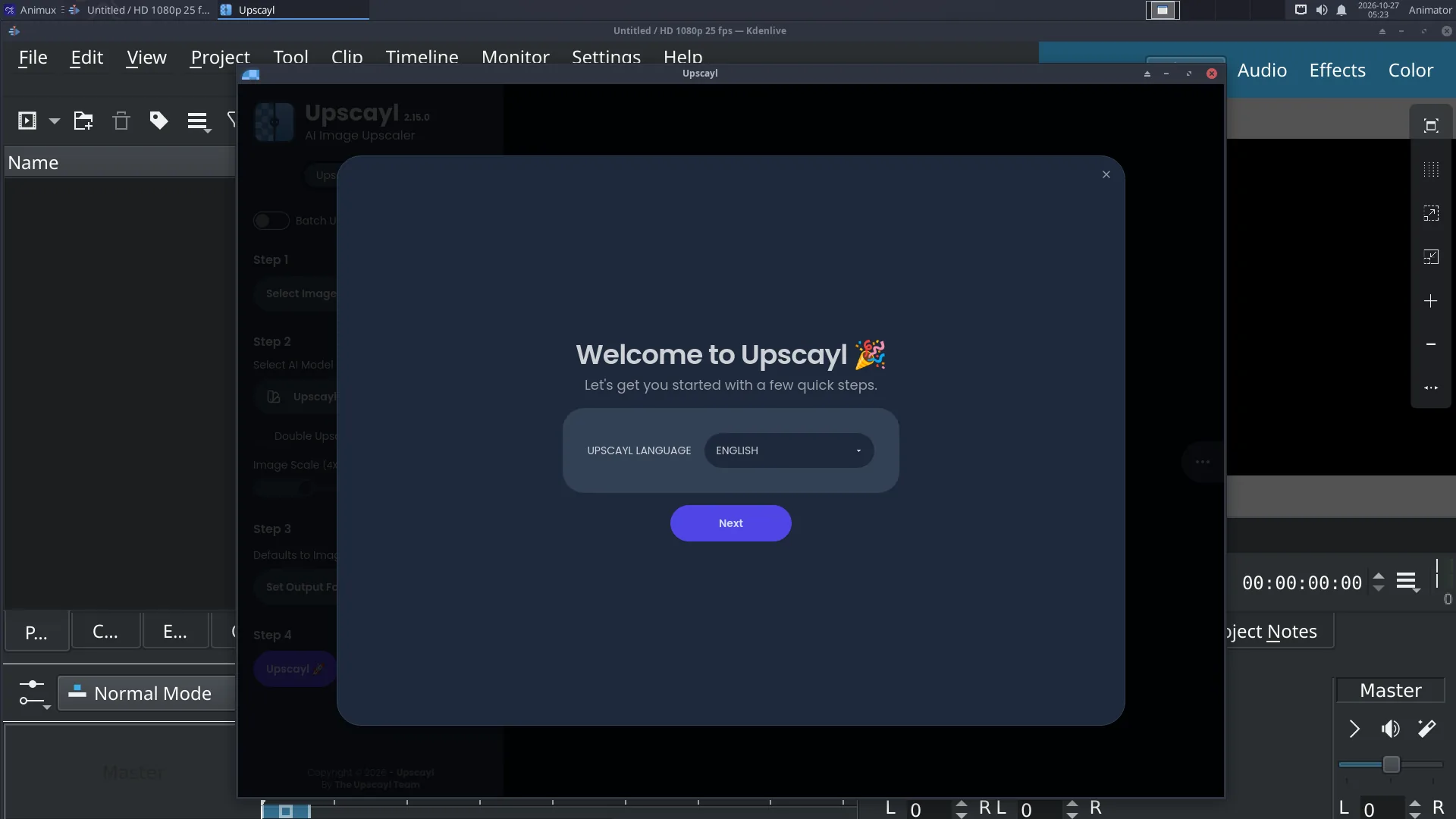
Steps#
- Start 2D Graphics → Ancillary Tools → Upscayl (or type
/opt/Upscayl/upscayl). - Select Image (or a folder, with Batch Upscayl).
- Choose an AI model: Upscayl Standard for photos and renders, Digital Art for drawings and anime.
- Choose the scale (2×, 3×, 4×) and the output folder.
- Click Upscayl and wait.
Speed
Upscayl uses the graphics card through Vulkan. With a real AMD, Intel or NVIDIA graphics card it takes seconds. In a virtual machine or without a Vulkan-capable driver it falls back to the slow software renderer (lavapipe), and a large image can take many minutes.
For animation frames, upscale the whole image sequence folder with Batch mode, then build the video with FFmpeg (video tools). Check a few frames first: AI upscaling can make small details flicker from frame to frame.
More AI tools (subtitles, background removal, chat models, Stable Diffusion): AI tools.