
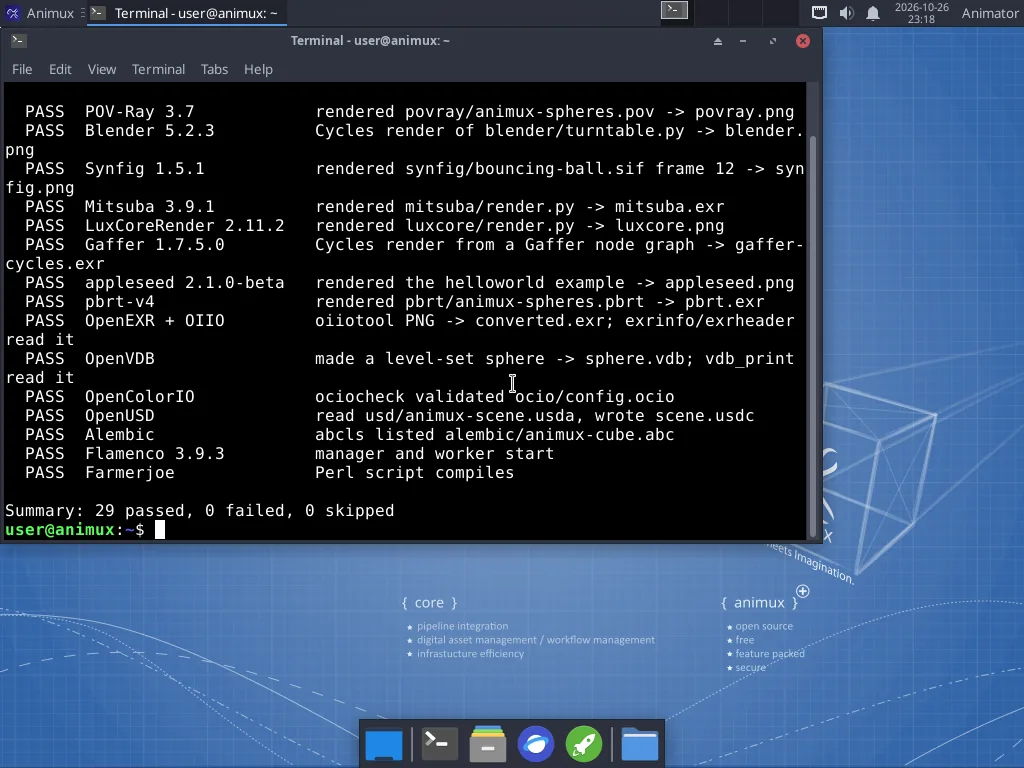
The terminal is a window where you type instructions instead of clicking. You can do almost everything on Animux without it. It is useful for a few jobs: rendering in the background, converting many files at once, and fixing problems. This guide always gives the full command; you can copy and paste it.
Open it with the >_ icon in the dock, or Animux → Terminal Emulator.
Copy and paste#
| In the terminal | Elsewhere | |
|---|---|---|
| Copy | Ctrl+Shift+C | Ctrl+C |
| Paste | Ctrl+Shift+V (or the middle mouse button) | Ctrl+V |
Press Enter to run a command. Ctrl+C stops a running command. The Up arrow brings back the previous command. Tab completes file names.
The twelve useful commands#
| Command | What it does | Example |
|---|---|---|
ls |
list the files here | ls ~/Pictures |
cd |
go into a folder | cd ~/Projects/my-short |
pwd |
show where you are | pwd |
cp |
copy | cp shot.blend shot-backup.blend |
mv |
move or rename | mv render.png final.png |
mkdir |
make a folder | mkdir -p ~/Projects/my-short/05-renders |
rm |
delete for good (no Trash!) | rm old-test.png |
xdg-open |
open a file with its usual program | xdg-open final.mp4 |
df -h |
how full the disks are | df -h |
free -h |
how much memory is used | free -h |
htop |
live list of running programs (q quits) | htop |
man |
the manual of a command (q quits) | man ffmpeg |
Programs from the terminal#
Every program in the menu can be started by name, for example blender, krita or kdenlive. Add & to keep using the terminal: krita &. The software list shows each program's command.
Rendering without opening a window is the most useful trick:
blender -b ~/Projects/my-short/04-shots/sh010.blend -a
sudo: doing things as administrator#
Installing software and changing the system need administrator rights. Put sudo in front:
sudo apt update
On an installed system it asks for your password (nothing appears while you type; that is normal). In the live session it does not ask.
Warning
Only use sudo with commands you understand or that come from this guide. As administrator you can damage the system.
Paths, quickly#
~is your Home folder;~/Picturesis the Pictures folder in it..is "here",..is "one folder up".- Names with spaces need quotes:
cd "~/My Projects"– or avoid spaces. - Upper and lower case are different:
Render.pngandrender.pngare two files.